 DE
DE  EN
EN 
Platform · Idle Shutdown
Idle Shutdown for Enterprise Endpoint Power Management
ASDM checks more than mouse and keyboard activity to decide whether a PC is idle. Configure it to account for running applications, background jobs and maintenance windows, and to protect open documents before shutdown.
Idle detection
Shut down idle PCs without interrupting work
PCs are often left running after work, during lunch, after long backups, virus scans, patching or other scheduled tasks. But switching everything off at a fixed time can disrupt users, meetings, remote sessions and maintenance work.
Idle time is not the same as no keyboard input
A PC may be doing useful work even when nobody touches the mouse or keyboard.
Users still work outside normal hours
Late meetings, webinars, remote access and shift work can make fixed “closing time” rules risky.
Backups and scans need protection
Maintenance jobs can run long after business hours and should not be broken by a blunt shutdown rule.
Always-on becomes the workaround
When shutdown is unreliable, users and IT often choose the safe but expensive habit: leave PCs powered on.
How ASDM works
Define when an idle PC can shut down
Auto Shutdown Manager can combine fixed schedules with intelligent idle detection. The point is not to shut down as many PCs as possible at once; the point is to reduce avoidable runtime without interrupting productive work.
01 · Detect
Define what counts as productive work
Idle rules can consider more than input activity, including workloads such as backups, virus scans, terminal sessions, network activity, printer queues and running processes.
02 · Protect
Prevent unwanted shutdowns
Shutdown decisions should respect productive time windows, active tasks, open documents and organization-specific exceptions so savings do not create support incidents.
03 · Prove
Review runtime and savings
Check runtime and savings reports before rolling out shutdown policies to more PCs.
Important condition
Idle shutdown must be safer than leaving PCs on.
If a shutdown policy interrupts useful work or risks open documents, users will fight it. A good policy starts with cautious rules, visible warnings where appropriate, automatic document saving where configured and validation in the real environment before broad rollout.
Product proof
Idle rules should be visible, explainable and centrally managed.
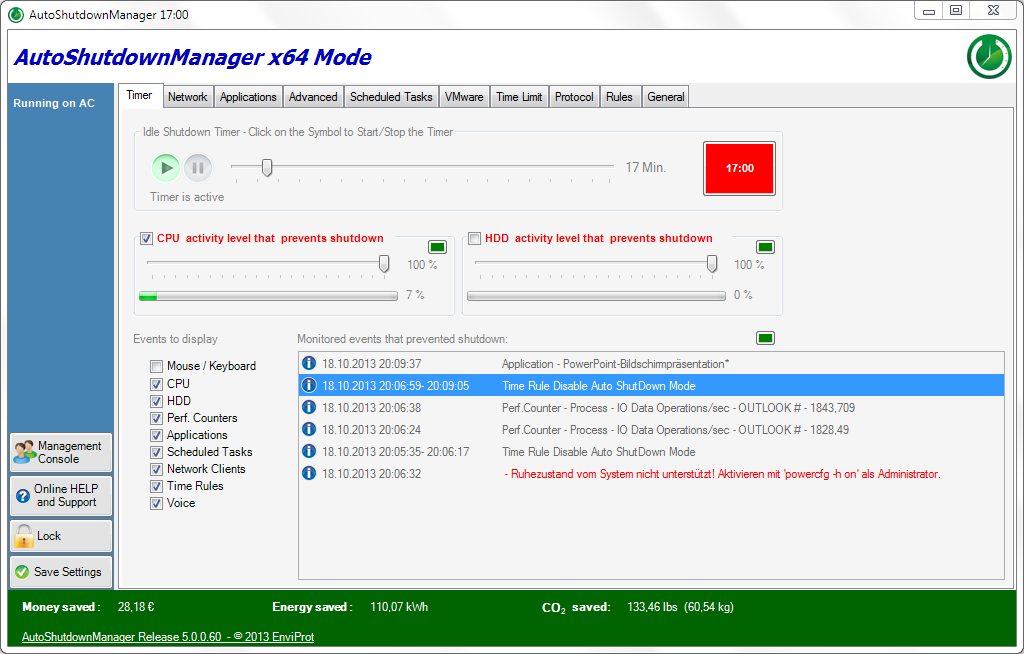
The existing Auto Shutdown Manager idle-shutdown configuration view shows the practical idea: define when a machine is considered productive, protect the work that is still open, then let policy reduce the remaining avoidable runtime.
Warn before action
Give users a visible chance to understand what is about to happen where policy requires it.
Save open documents
Before shutdown, open documents can be saved automatically so idle shutdown does not become a lost-work event.
Respect exceptions
Protect productive tasks, maintenance work and endpoint groups that should not follow the default shutdown rule.
Multi-signal idle analysis
Not just “no keyboard input.” ASDM checks whether the PC is still doing useful work.
That is the difference an IT admin needs to see first. Windows power management is a useful baseline, but it is mainly built around direct PC interactivity. Auto Shutdown Manager by EnviProt can include a much wider set of user, application, system, network and environment signals before an endpoint is considered idle.
Typical Windows idle logic
“Has someone touched the PC?”
Useful for basic power settings, but too narrow for many enterprise machines, classrooms, labs, kiosks, production environments and maintenance workflows.
ASDM idle analysis
“Is this endpoint still doing useful work?”
ASDM can consider activity beyond mouse and keyboard input, so a PC is not treated as idle just because nobody is typing.
User and session signals
Mouse and keyboard activity, logged-on state and terminal sessions help distinguish absence from active or remote work.
Applications and services
Running applications, services, scheduled tasks, processes and their activity can prevent a false idle decision.
System workload
CPU load, HDD or disk utilization, memory usage and performance counters can show that the endpoint is still busy.
Network and device activity
Network traffic, printer queues and TCP/IP-enabled devices such as machines, multimedia equipment or other endpoints can be part of the shutdown decision.
Environment signal
Where configured, microphone-based volume detection can delay shutdown during calls, presentations or meetings. ASDM measures volume level only; it does not record, store or process sound data.
Admin takeaway
This is where ASDM leaves the “just Windows power settings” category.
The value is not only that ASDM can shut down idle PCs. The value is the broader decision before shutdown: users who work late, applications, performance, network dependencies, devices, sound level, time rules and document protection can all be considered where configured and validated.
Policy flow
Keep PCs available, respect late work, then shut down only after useful work is finished.
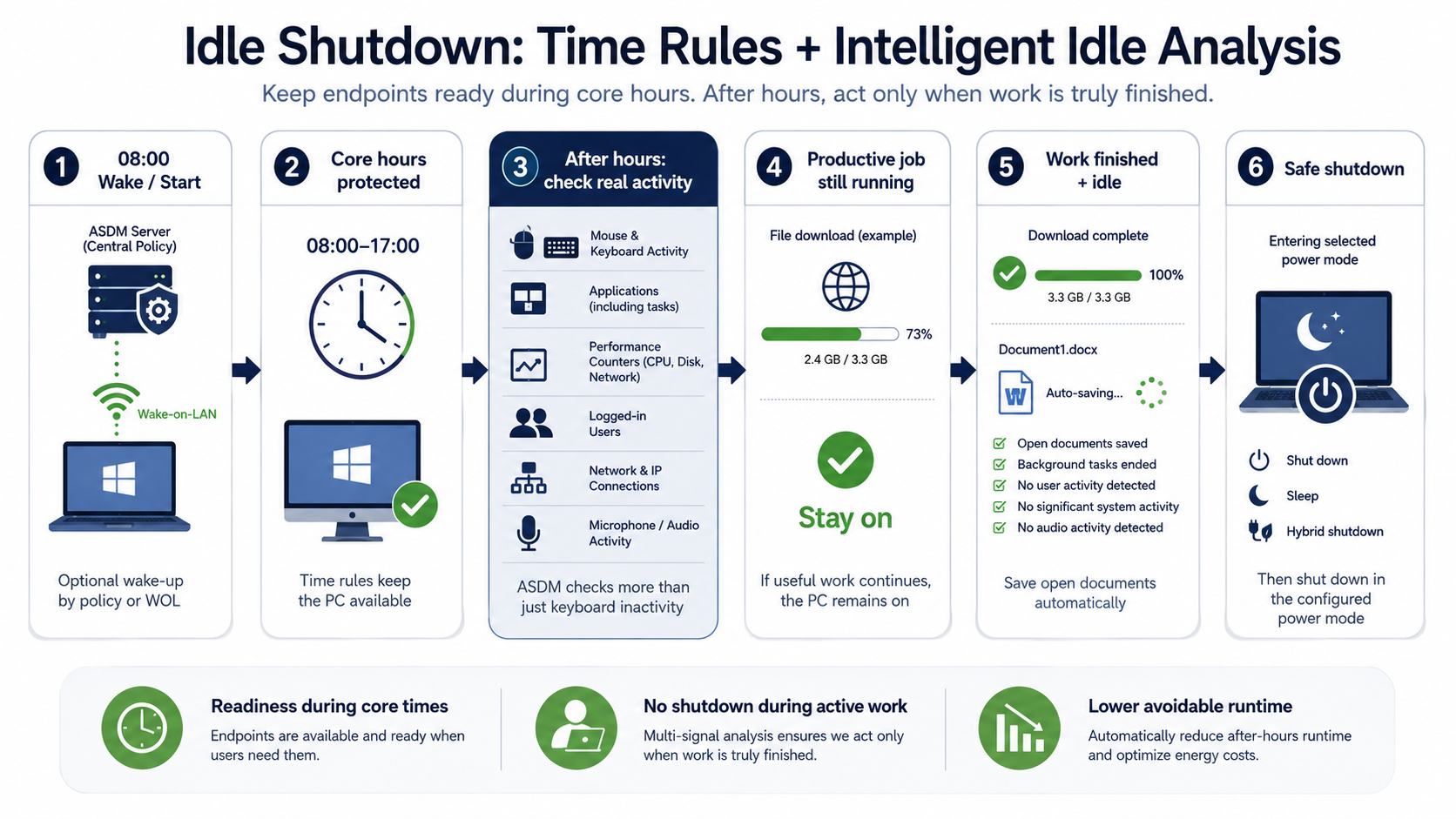
After hours should not mean a hard cutoff. Time rules can define when idle shutdown is allowed to start working, but Auto Shutdown Manager by EnviProt can still respect users who continue working late, long downloads, active jobs, sessions or device dependencies. When useful work is finished and the endpoint is otherwise idle, documents can be saved and the configured power mode can be applied.
Why ASDM instead of a simple timer?
Safe idle shutdown needs context, not just a clock.
Fixed timers, operating-system defaults and scripts can help with parts of endpoint power management. Auto Shutdown Manager complements them with dedicated policies for context-aware shutdown decisions.
Reduce avoidable runtime
Shut down PCs that are no longer doing useful work.
Avoid user disruption
Do not interrupt active work, late meetings, remote activity or leave open documents unprotected.
Protect background work
Backups, scans, queues and long-running tasks need protection.
Fit maintenance windows
Power savings should not break patching or planned IT work.
Prove the result
IT leaders need measurable savings, not guesswork.
Safe rollout path
Start cautious, then scale the policy.
Idle shutdown works best when IT begins with visible, controlled rules, validates user impact and expands only after the exceptions are understood.
Choose a pilot group
Start with a department, site or endpoint group where work patterns and maintenance needs are well understood.
Validate idle rules
Check that productive tasks, scheduled work, remote access and user expectations are protected before scaling.
Expand by policy
Roll out by group, site or organizational unit when runtime reduction is predictable and support impact is acceptable.
FAQ
Idle shutdown in enterprise environments
Is this different from normal Windows power management?
Yes. Windows power management is useful for basic idle behavior, but ASDM can include a wider idle analysis: applications, services, performance counters, network activity, terminal sessions, printer queues, TCP/IP-enabled devices, time rules and optional volume-level detection. The exact policy should be configured and validated for the environment.
Is idle shutdown just a fixed shutdown schedule?
No. Fixed schedules can be useful, but the stronger approach is to combine schedules with idle detection and centrally defined exceptions. That is how power savings can coexist with real work patterns.
Can ASDM protect backups, scans and other background tasks?
Auto Shutdown Manager can use signals such as processes, services, system load, network activity, sessions, printer queues and backup or scan activity as part of the idle decision. The exact policy should be validated in your environment.
Does this replace Windows power management, GPO, SCCM/MECM or Intune?
No. Those tools can remain part of endpoint operations. ASDM adds idle shutdown, wake, maintenance and reporting controls.
Can users or departments have different rules?
Idle policies should reflect real work patterns. Productive time windows, endpoint groups, document-saving behavior and centrally managed rules can be used to avoid one-size-fits-all shutdown behavior.
What happens to open documents before shutdown?
Auto Shutdown Manager can save open documents automatically before shutdown. This should be part of a cautious rollout: define the policy, validate the behavior with real applications and make sure users understand what happens before broad deployment.
How should we start?
Start with a controlled pilot, choose conservative rules, validate user impact and only then expand by group, site or organizational unit.
Shut down safely. Wake reliably. Prove the savings.
Turn idle shutdown into a controlled endpoint power-management process.
Use Auto Shutdown Manager to reduce avoidable runtime without turning shutdown into a user disruption or a maintenance risk.