 DE
DE  EN
EN 
Platform · WOL Portals
Advanced Wake-on-LAN Portal with SAML Single Sign-On
Give authorized users a controlled way to wake assigned office PCs before remote access begins. Deploy the Advanced WOL Portal in your own infrastructure, connect it to SAML 2.0 and Active Directory, manage users and PCs directly in the portal, or combine both approaches for selected exceptions.
What the portal solves
Remote wake access without leaving every office PC running.
Auto Shutdown Manager (ASDM) handles endpoint wake-up before a remote session starts. The WOL Portal controls who can wake which PC. Your existing VPN, Remote Desktop, VDI, remote-support and endpoint-security tools continue to handle access and protection.
Assigned-machine access
Users see only the PCs assigned to them instead of receiving unrestricted wake access to every managed endpoint.
Self-hosted control
Deploy the Advanced WOL Portal on Microsoft IIS in your own infrastructure and connect it to your existing identity, network and security controls.
ASDM-routed wake
The portal sends each approved request to the ASDM Server, which uses your configured WOL routing, proxy and Wake-on-WAN components where supported.
How it fits together
Manage users and PC assignments in AD, the portal or both
Manage users and PC assignments in Active Directory, in the WOL Portal, or with a combination of both. Users see the PCs they are allowed to wake, and ASDM handles the wake-up request.
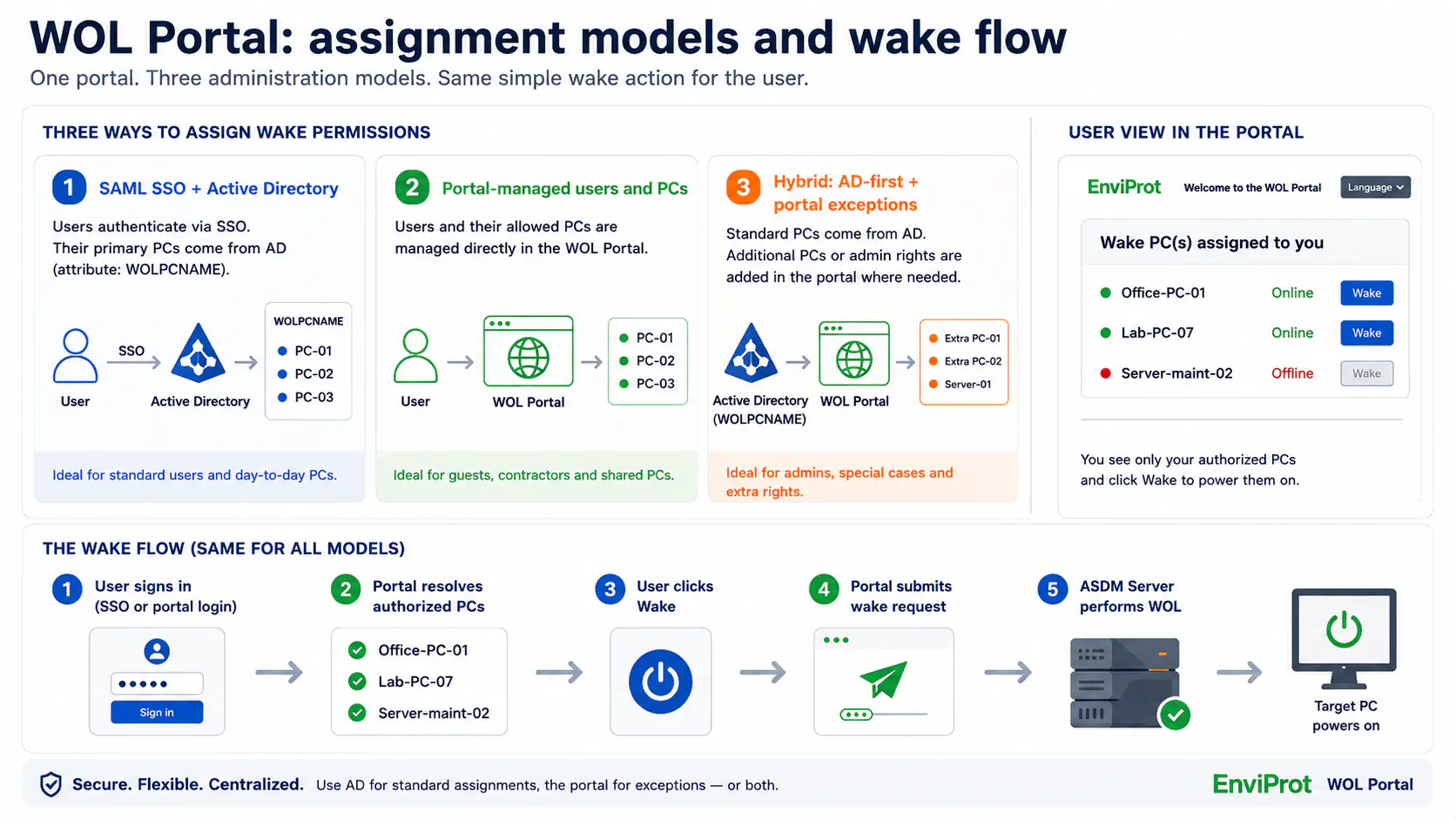
Three administration models
SSO with Active Directory, direct portal administration—or both together.
Use Active Directory for standard assignments, the portal for direct administration, or combine both when selected users need additional wake rights.
Mode 1
SAML SSO + Active Directory assignments
Sign-in: your corporate SAML 2.0 identity provider.
PC assignments: the user’s Active Directory object through the configurable WOLPCNAME attribute, or another attribute name you configure.
Best fit: organizations that keep day-to-day user-to-PC assignments in Active Directory.
Mode 2
Portal-managed users and PCs
Sign-in: the direct WOL Portal login.
PC assignments: maintained directly in the Advanced WOL Portal User Manager.
Best fit: deployments without SAML SSO, smaller scopes, pilots, guests, contractors, or teams that want direct portal-side control.
Mode 3
Hybrid: AD primary PCs + portal exceptions
Sign-in: SAML SSO can remain the normal user path.
PC assignments: primary PCs come from Active Directory, while selected users receive additional PCs or wider wake rights directly in the portal.
Best fit: AD-first organizations that need controlled exceptions for admins, support teams, lab systems, shared PCs or servers.
The important hybrid point
AD-first does not mean AD-only.
Keep the standard workforce aligned with Active Directory and SAML SSO, then use portal management only where extra flexibility is needed. Normal office users can receive their primary PCs from AD, while an administrator or support user can also receive additional lab machines, shared PCs, servers or other explicitly assigned systems.
Mode 1 · SAML SSO + Active Directory
One corporate sign-in, with primary PC assignments managed in Active Directory.
Users first authenticate through your corporate VPN and SAML 2.0 identity provider. The portal receives the configured identity claim and reads the user’s primary PC assignments from Active Directory. Once configured, the SSO path opens the assigned-PC workflow without a second portal password.
Identity from the IdP
By default, the portal reads the user-principal-name value from the LoginName claim to identify the signed-in user.
Primary PCs from AD
Store one or more comma-separated PC names in WOLPCNAME, or configure a different Active Directory attribute name.
No duplicate portal record required
SSO users do not need a second portal user record for their normal AD assignments. Add a portal record only when that user also needs additional portal-managed PCs or roles.
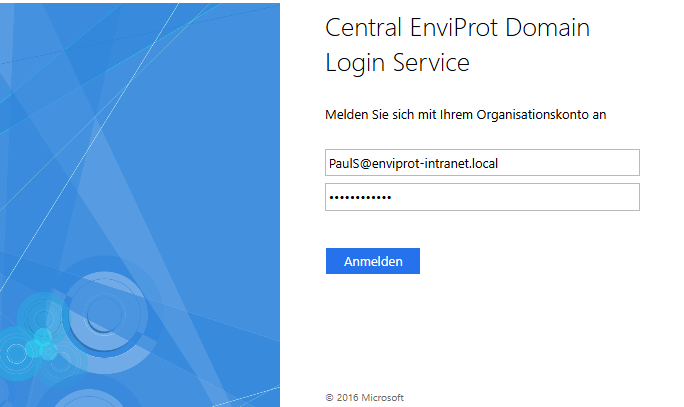
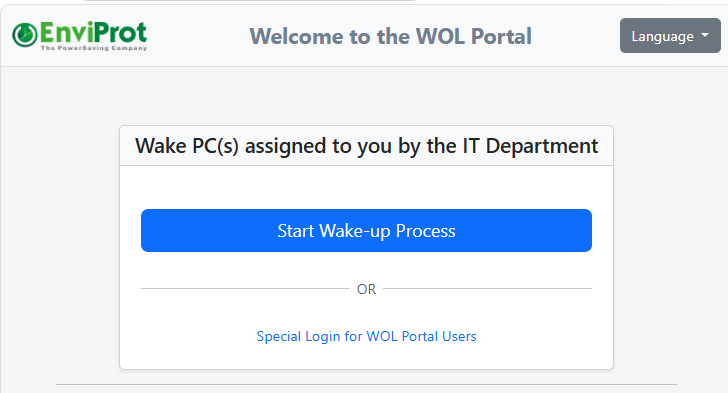
SSO user path in screenshots
The identity-provider login leads into the same assigned-PC wake workflow.
The first screen is your corporate identity-provider sign-in. After authentication, the portal opens the assigned-PC wake workflow without asking for another portal password.
Mode 2 · Direct portal administration
Manage users and PCs directly in the portal when that fits better.
Use the User Manager when you want to create portal users, assign roles and maintain wake permissions directly. This path works without SAML SSO and also adds controlled exceptions to an AD-first deployment.


Mode 3 · Hybrid assignment result
AD stays the default source, while portal management adds selected extra wake rights.
Keep standard users on SAML SSO with their primary office PCs from Active Directory. For selected admins, support users or special cases, add extra systems directly in the portal—such as lab PCs, shared machines or servers.

One wake workflow behind all three modes
Authentication and assignment can differ. The ASDM wake path stays the same.
The WOL Portal identifies the user, resolves the allowed PCs and submits the selected wake request to the ASDM Server. ASDM then performs the Wake-on-LAN action through your configured wake infrastructure.
1. Identify the user
Use SAML SSO or the direct portal login.
2. Build the allowed-PC list
Combine Active Directory assignments with portal-managed PCs where configured.
3. Forward the wake request
Send the selected PC and authorized user request to the ASDM Server.
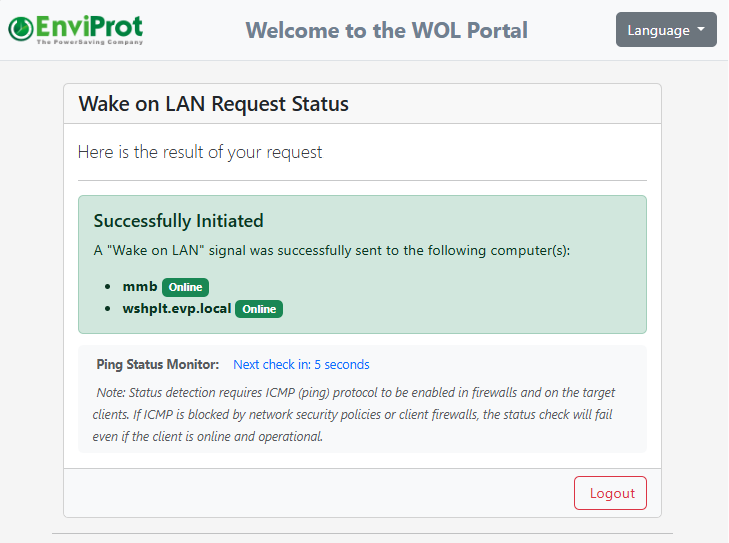
4. Confirm the request
Show whether the wake request was accepted and display endpoint status where available.
Wake request confirmation
After the user selects a PC and clicks Wake, the portal submits the request to ASDM and shows whether the request was accepted. Endpoint status can also be displayed when the required status path is available.
Technical fit
Deploy the portal in your own Windows infrastructure.
The Advanced WOL Portal is self-hosted. Install it on your IIS server, connect it to SQL Server and ASDM, secure it with HTTPS, and integrate SAML and Active Directory where required.
IIS and Windows Server
Use Microsoft IIS on Windows Server 2016 or newer with the required ASP.NET 4.x application-development features enabled.
.NET Framework
Install Microsoft .NET Framework 4.8 or newer.
SQL Server
Use Microsoft SQL Server 2012 or newer, including SQL Server Express, for portal data.
HTTPS
Publish the portal over HTTPS and manage certificate trust and lifecycle through your IIS environment.
ASDM Server
We recommend ASDM Server 5.7.4.x or newer for full compatibility with the current Advanced WOL Portal release.
AD schema planning
For AD-based PC assignments, add the custom user attribute—by default WOLPCNAME—and validate the schema change in a test environment first.
Included portal software
We provide the Advanced WOL Portal software to ASDM customers at no additional software license cost.
Use the Advanced Portal for SAML SSO, assigned-PC workflows and enterprise administration. You provide and operate the Windows Server, IIS, SQL Server, certificates and network infrastructure in your own environment.
Portal capabilities
Advanced WOL Portal for managed enterprise access
- Optional SAML 2.0 single sign-on
- AD-based primary PC assignments
- Direct portal user and PC administration
- Hybrid AD-plus-portal assignment workflows
- Assigned-machine wake workflow
- Group status and administrative views
- ASDM WOL routing and proxy integration
FAQ
Common questions about the Advanced WOL Portal
Are the three modes separate portals?
No. They are three administration models for the same Advanced WOL Portal. Choose Active Directory assignments, direct portal administration, or a hybrid of both.
Does SAML SSO mean users never see another portal login?
When configured correctly, yes. The portal can reuse the identity authenticated by your SAML 2.0 provider and open the assigned-PC workflow without a second portal password. The direct portal login remains available for other configurations.
Can we manage PC assignments directly in Active Directory?
Yes. Store the user’s primary PC assignments in a configurable custom attribute on the Active Directory user object. The default attribute name is WOLPCNAME. Plan and test the required AD schema extension before rollout.
Can SSO assignments and portal-managed assignments be combined?
Yes. Keep normal PCs in Active Directory for the SSO workflow, then assign additional PCs or wider wake rights directly in the portal for selected users. This is the hybrid model.
Does the portal itself send the final Magic Packet?
No. The portal submits the authorized request to the ASDM Server. ASDM then performs the wake action through the configured WOL routing and proxy infrastructure.
Is the Advanced WOL Portal cloud-hosted?
No. You deploy the Advanced WOL Portal on your own Microsoft IIS and SQL Server infrastructure.
Does the portal replace VPN, Remote Desktop or endpoint security?
No. The portal manages endpoint wake availability. Your VPN, RDP, VDI, remote-support, authentication and endpoint-security systems continue to handle the remote session and its protection.
Is the Advanced WOL Portal included for ASDM customers?
Yes. We provide the Advanced WOL Portal software to ASDM customers at no additional software license cost. You provide and operate the required server, database, certificate and network infrastructure.
Controlled wake access for real environments
Test SSO, AD assignments, portal exceptions and the complete wake path in your own environment.
Start with representative users, PCs and network segments. Verify SAML claims, Active Directory assignments, portal-managed exceptions and ASDM wake routing before expanding the rollout.