
 DE
DE  EN
EN Central Management
Centralized control for enterprise PC power management
Auto Shutdown Manager’s Management Console gives IT one place to configure power policies, organize clients, run maintenance actions, manage licensing, roll out updates and review operational events.
Control plane
Operate power management as a managed IT process
Power management only works at enterprise scale when IT can target the right clients, avoid uncontrolled shutdowns, support maintenance windows and keep endpoint availability under control. The Management Console is the operational layer for that process.
Manage clients by groups
Assign clients to groups with different power policies, security options and administrative settings. Assignment can be done manually or automated by PC name filters and Active Directory structure.
Run controlled remote actions
Wake, shut down, restart, log off, standby or hibernate selected PCs or complete PC groups directly from the console when operational work requires it.
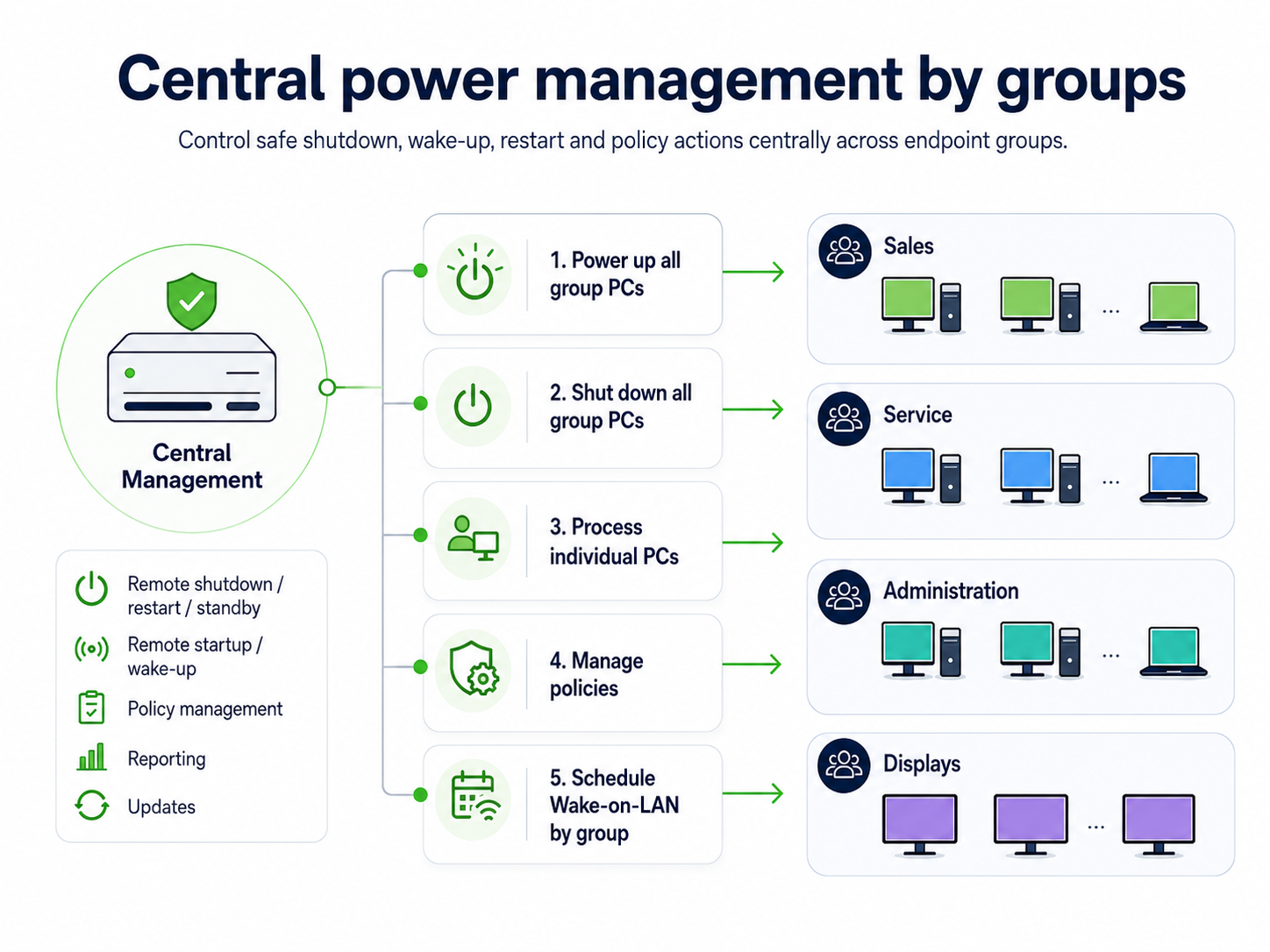
Management categories
Six console areas for daily administration
The Management Console keeps the core administration tasks visible and repeatable, instead of spreading power settings, updates, licensing and maintenance actions across scripts and manual routines.
Client Manager
Create client groups, assign policy sets and organize PCs by function, department or Active Directory structure.
- Manual drag-and-drop assignment
- PC name filters
- Active Directory-based structure
- Remote wake and shutdown commands
License Manager
Manage client licensing centrally, either with permanent client licenses or leased licenses from the server.
- Central license handling
- Server-based lease model
- Inactive client license reuse after 90 days
- Manual cleanup if needed
Update Manager
Keep Auto Shutdown Manager clients up to date across selected groups after the server has been updated.
- Group-based rollout
- Transparent update process
- Works even when no user is logged on
- Designed for large client bases
Maintenance Manager
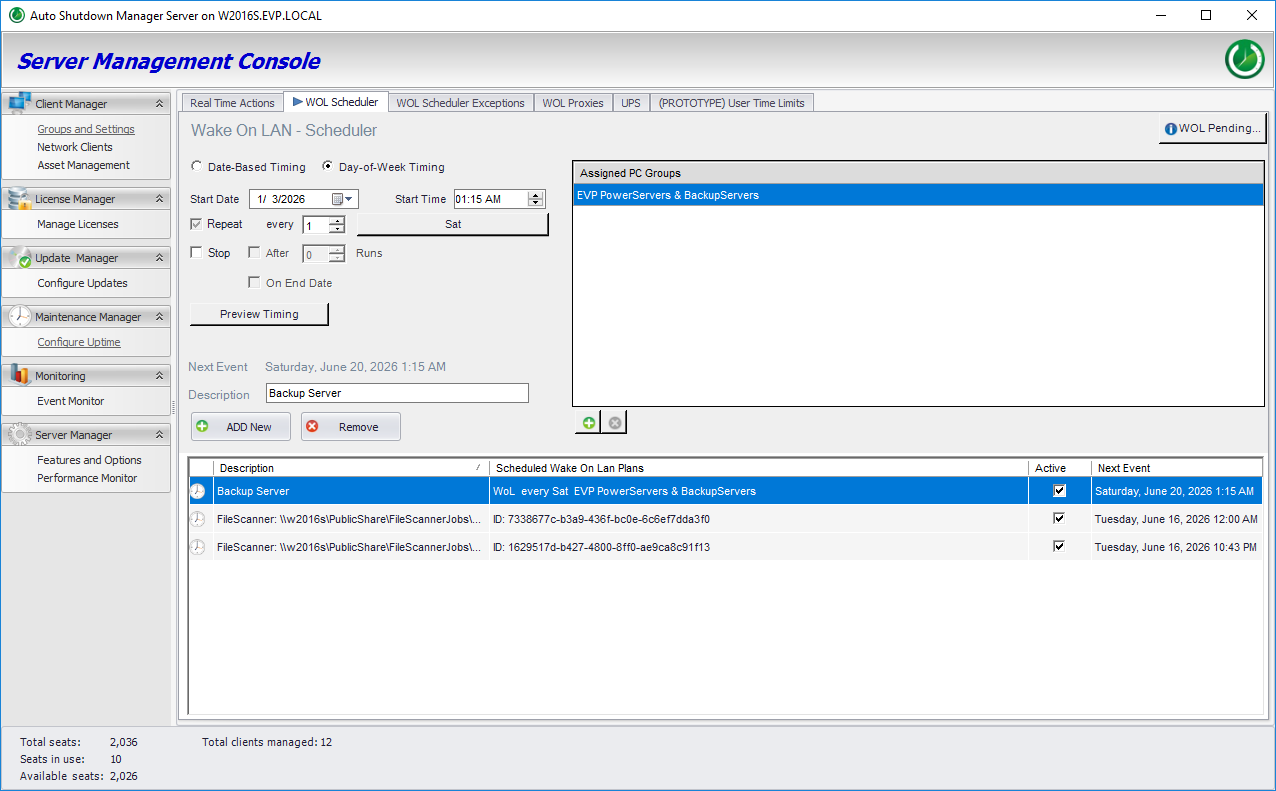
Wake clients for administration tasks, keep them running while needed and power them down again after maintenance is complete.
- Scheduled or immediate wake-up
- Wake-on-LAN support
- Maintenance availability without 24/7 runtime
- Supports advanced WOL scenarios
Client Monitor
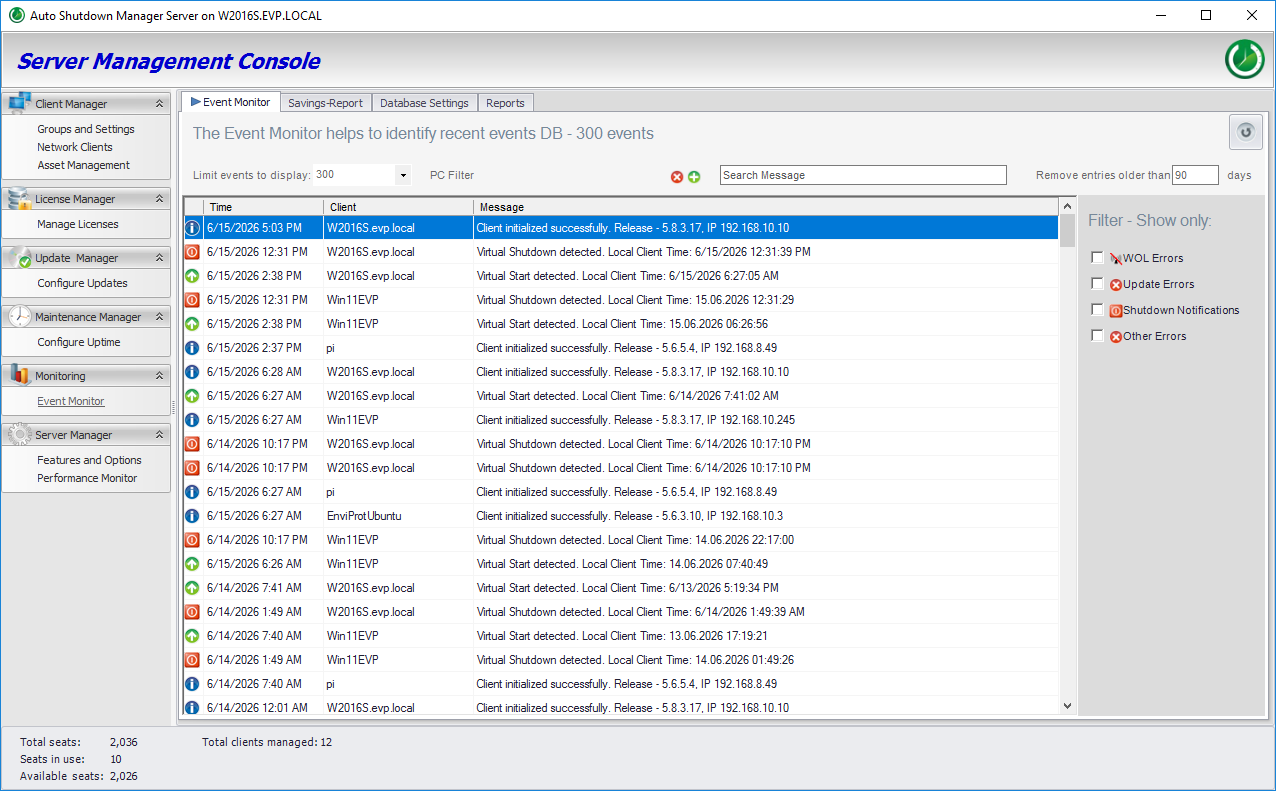
Review recent operational events such as wake-ups, shutdowns, client initialization, updates and issues.
- High-level event overview
- Operational status visibility
- Savings overview
- SQL database export for deeper analysis
Savings & reporting
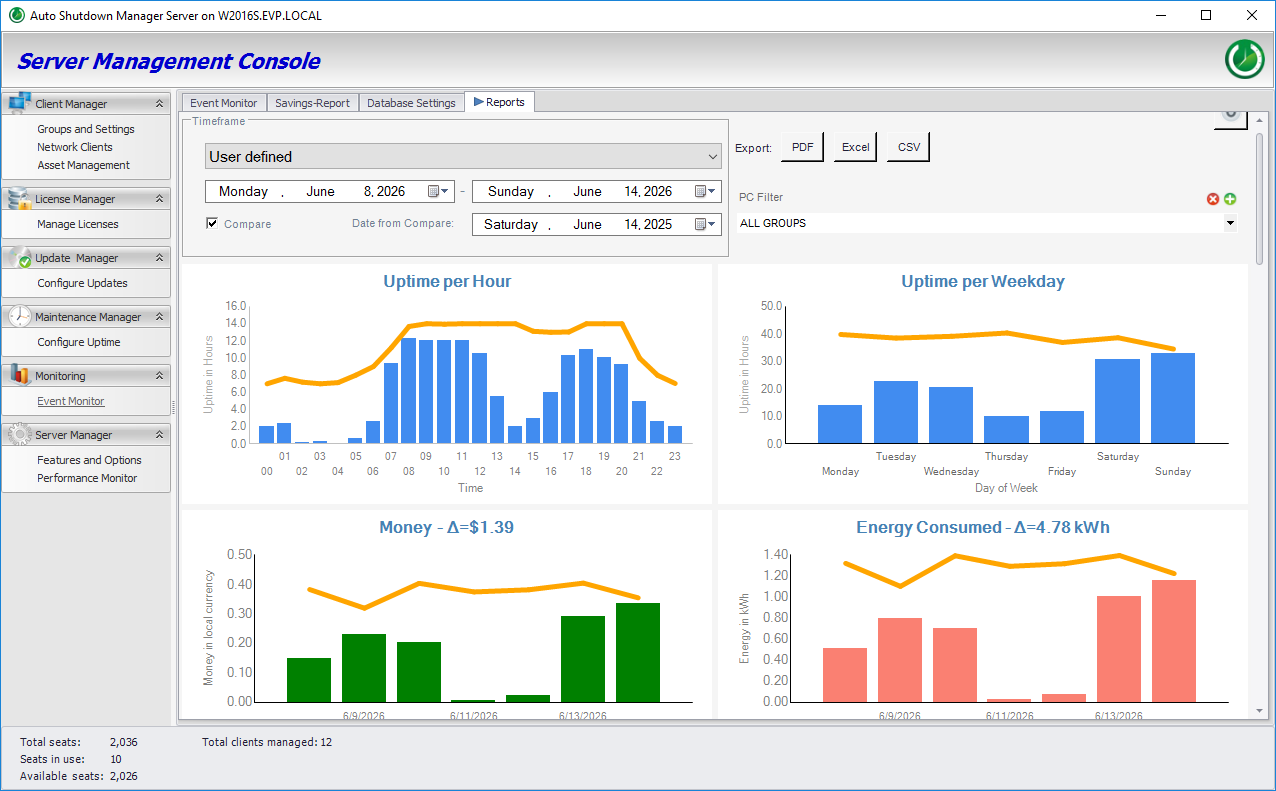
Use management data to support the business case for endpoint energy management and to validate savings in your environment.
- Client activity events
- Shutdown and wake-up history
- High-level savings report
- Data basis for further analysis
Console proof
Real console views for daily IT administration
These console views show the operational work behind central endpoint power management: policy groups, maintenance wake-up, event monitoring and savings reporting.

Deployment & provisioning
Deploy clients with your existing software distribution process
Auto Shutdown Manager clients can be rolled out as MSI packages using Group Policy, Microsoft Configuration Manager/SCCM or other MSI-capable deployment tools. After installation, clients can receive the server connection data automatically and start retrieving their first configuration from the ASDM Server.
Automatic server provisioning
New client PCs can receive the ASDM server address and TCP port during installation by using a simple server.ini file in the MSI source folder.
Works with existing rollout tools
Use the deployment process you already operate. When file-based provisioning is used, target computers need read access to the shared MSI source folder.
Server and port via command line
For scripted or managed installations, the server name or IP address and port can also be passed directly to the MSI command line, for example through deployment-tool parameters.
Image-based client systems
For provisioning or image-based environments, documented setup strategies cover preserved installation folders, unique client IDs and separate local data paths for session-based data.
Microsoft environment fit
Complements your existing endpoint-management tools
Windows, GPO, SCCM/MCM, Intune and scripts can all help with parts of endpoint administration. Auto Shutdown Manager focuses on the operational power-management process: safe shutdown, reliable wake-up, maintenance availability, group targeting and savings visibility.
Policy targeting
Use groups and automated assignment to apply different power-management behavior to offices, support teams, sales, marketing, laptops or other client sets.
Maintenance windows
Wake clients for maintenance tasks, keep them available while administrative work runs and power them down afterwards where the environment allows it.
Savings proof
Use event and savings reports as a practical basis for rollout validation, ROI discussions and continuous optimization.
Admin questions
Central management FAQ
Does Central Management replace SCCM/MCM, Intune or GPO?
No. Auto Shutdown Manager is designed to complement existing endpoint-management tools with dedicated power-management operations, Wake-on-LAN workflows, group-based actions and savings visibility.
Can clients be assigned to groups automatically?
Yes. Client PCs can be assigned manually or automated by PC name filters or the Active Directory structure, depending on how you want to organize policies.
Can the console wake PCs for maintenance?
Yes. The Maintenance Manager can wake clients for maintenance tasks, keep them running as long as needed and power them down again after the work is complete.
Can events and savings be analyzed later?
The Client Monitor provides a high-level event and savings overview. Report details can also be written to a Microsoft SQL database for further analysis.
How are ASDM clients deployed and connected to the server?
ASDM clients can be deployed as MSI packages through Group Policy, Microsoft Configuration Manager/SCCM or other MSI-capable deployment tools. During installation, clients can receive the server address and port automatically via a server.ini file or MSI command-line parameters.
START SMALL. SCALE SAFELY.
Pilot endpoint power management without building a custom script stack.
Start with a small set of managed PCs, validate policies in your own environment, then expand by groups, sites or departments.